AI in Woodworking: Practical Ways to Design, Nest & Build Smarter (2026 Update)
Table of Contents
- What “AI” Means for Woodworkers in 2026
- Where AI Helps Most in a Woodworking Shop
- A Practical “AI Workflow” You Can Use Today
- CAD and CAM: Where AI Can Help (and Where It Can’t)
- Using Your Phone for Smarter Material Decisions
- Spatial Computing (AR/VR): Useful for Some Shops, Not Required for Most
- Top AI-Friendly Tools for Woodworkers (2026)
- Common Pitfalls (and How to Avoid Them)
- Where AI Doesn’t Help (Yet)—The Shop-Floor Truth
- What’s Next: Automation in Larger Shops
- Bottom Line
- FAQs
AI isn’t a “someday” technology anymore—it’s already showing up in real woodworking workflows. Not as a magic button, and not as a replacement for skill, but as a way to speed up planning, reduce material waste, and make design decisions with fewer do-overs.
This 2026 update focuses on what actually helps in a shop today: generating concepts faster, turning ideas into buildable plans, optimizing sheet layouts, and improving how you present projects to clients. We’ll also call out where AI still falls short—because it definitely does.
What “AI” Means for Woodworkers in 2026
In woodworking, “AI” usually means software that can help you create, refine, or optimize a design faster than doing everything manually. That can include:
- Idea generation: quick concept sketches, styles, and variations.
- Design assistance: helping you model parts, refine proportions, or explore alternatives.
- Layout optimization: nesting parts to reduce scrap on plywood/MDF or to work around defects.
- Visualization: better renderings and room mockups so clients can “see it” before you build it.
A helpful way to think about it: AI is becoming another “power tool” in the design stage. It can save time and reduce waste—as long as you verify the output and keep the project grounded in real joinery, real tooling, and real wood movement.
Where AI Helps Most in a Woodworking Shop
1) Faster concept-to-plan (without getting stuck in the blank page stage)
If you’ve ever stared at a new project and thought, “I know what I want, but I can’t quite see it,” AI can help you generate a few directions quickly—styles, proportions, leg profiles, door patterns, hardware ideas, etc. The best use here is speed: get to a workable idea faster, then switch back to your normal design process.
ToolsToday tip: Treat early AI images as inspiration—not instructions. A pretty rendering can hide a joint that’s impossible to assemble, or dimensions that don’t make structural sense.
2) Smarter sheet-good layouts (less scrap, fewer extra sheets)
Nesting and layout optimization is one of the most practical “AI-ish” benefits for woodworkers. Whether you’re building cabinets, drawer boxes, jigs, or repeated parts, good layout software can reduce waste and save money—especially when sheet goods prices fluctuate.
- Better yield from each sheet
- Cleaner workflow for CNC cutting
- Less time rearranging parts manually
This is where “sustainability” becomes real: fewer wasted sheets means fewer reorders, less disposal, and more profit per job.
3) Visualization that closes the gap between “I think I’ll like it” and “Yes, build it”
For custom work, client approval is a big bottleneck. AI-assisted rendering can make your concept look more realistic sooner, which helps clients make decisions faster (and helps you avoid expensive late-stage changes).
If you do any built-ins, cabinetry, or custom furniture, good visualization can shorten the sales cycle—especially when you can show variations (wood species, finish tone, door style, hardware) without remaking the entire model.
4) Early-stage “what if” testing
Some design platforms are getting better at simulation and analysis. Even basic checks—like identifying weak points or estimating load issues—can be useful in the planning stage.
Just keep expectations realistic: software can help you spot problems, but it won’t replace common sense about grain direction, fasteners, glue surfaces, and real-world joinery.
A Practical “AI Workflow” You Can Use Today
Here’s a simple, shop-friendly way to incorporate AI without turning your process upside down:
- Start with a rough idea: hand sketch, photo reference, or a basic description of what you want to build.
- Generate a few variations: pick one direction that feels buildable and matches your style.
- Move into CAD: model the project with real dimensions, joinery, and hardware constraints.
- Create a cut list + optimize layouts: use nesting/layout tools to reduce waste.
- Validate before cutting: check toolpaths, clearances, and assembly order.
- Build the real thing: because wood (and shops) don’t behave like perfect digital environments.
The goal is not “AI does it all.” The goal is AI speeds up the boring parts so you can spend more time on fit, finish, and craftsmanship.
Easily transforms hand-drawn sketches into Scalable Vector Graphics (SVG), perfect for digital fabrication tools like CNC machines, laser cutters, and vinyl cutters.
CAD and CAM: Where AI Can Help (and Where It Can’t)
AI can help with:
- Design exploration: “Show me three leg profile options that match this style.”
- Common edits: rounded edges, pattern variations, quick proportion changes.
- Drafting support: generating notes, steps, or summaries you can refine.
- Setup reduction: faster iteration from one design version to the next.
AI can’t replace:
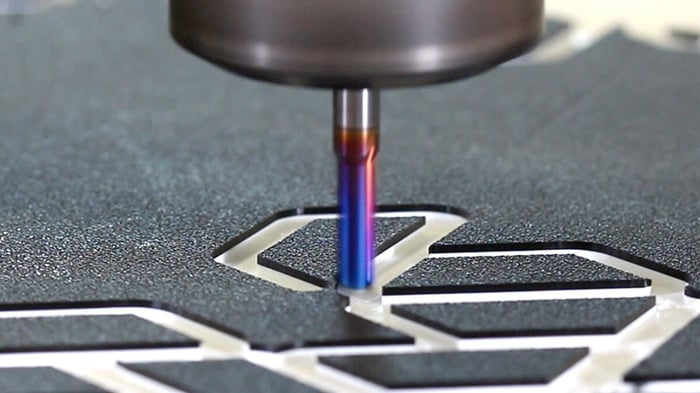
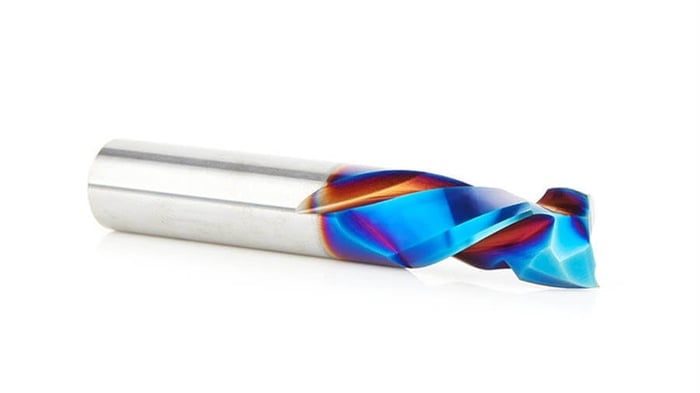
- Tooling reality: a great toolpath still needs the right bit, feeds, and workholding.
- Assembly logic: you still need to confirm you can physically assemble the thing.
- Wood behavior: grain direction, seasonal movement, tear-out risk, and glue strategy aren’t “optional.”
ToolsToday reality check: If an AI-suggested toolpath looks too good to be true, it probably is. Always verify in CAM before you hit Start.
Using Your Phone for Smarter Material Decisions
Computer vision (using a camera to “understand” an image) is showing up in more apps. The practical use in woodworking isn’t magic—it’s convenience:
- Documenting boards and slabs for quick reference
- Flagging knots/defects so you can plan around them
- Matching grain and figure for bookmatched panels or visible faces
You don’t need perfect AI detection to benefit. Even a simple photo-based inventory system can help you remember what you have on hand—especially if you’re juggling multiple builds.
Spatial Computing (AR/VR): Useful for Some Shops, Not Required for Most
Mixed reality and VR headsets are getting a lot of attention. For most hobbyists, they’re not essential. But for design-forward shops, high-end built-ins, or client-driven work, they can be helpful for one thing:
Seeing a full-size version of a design in a real space before you build it.
If you build custom furniture or built-ins, being able to visualize scale and placement can reduce revisions and increase client confidence. If you mostly build for yourself, you can skip this and lose nothing.
Top AI-Friendly Tools for Woodworkers (2026)
These are popular platforms woodworkers already use—plus a few AI-centric tools people are adopting for faster visualization. (Features change quickly, so think of this as a “category guide” more than a promise of specific buttons or functions.)
| Tool | Best For | Why Woodworkers Use It |
|---|---|---|
| Fusion 360 | CAD/CAM + CNC workflow | Good all-in-one workflow for design and toolpaths, especially for CNC users. |
| Shapr3D | Fast modeling (tablet-friendly) | Quick concept-to-model workflow, great for early design iterations and client visuals. |
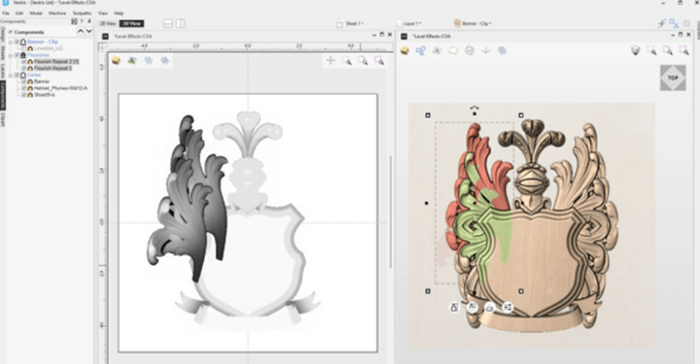
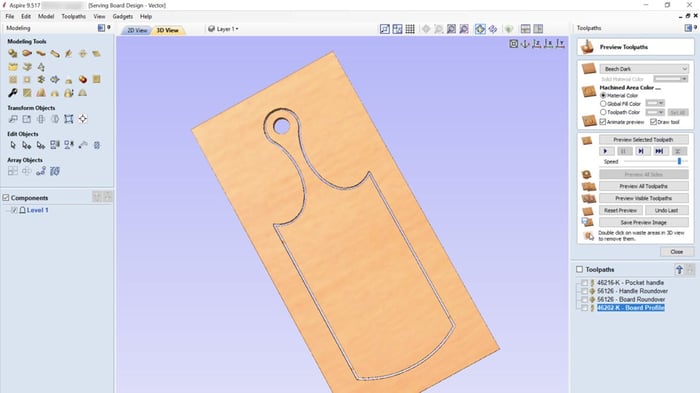
| Vectric (e.g., Aspire/VCarve) | CNC routing | Widely used for CNC carving, signage, and production work; strong toolpath control. |
| LightBurn | Laser cutting/engraving | Popular laser workflow with strong editing and layout tools for engraving projects. |
| Vizcom (and similar) | Concept rendering | Fast visual mockups from sketches—helpful for client presentations and brainstorming. |
| Midjourney / DALL·E | Inspiration + mood boards | Great for generating style directions (not build instructions) and client-facing concepts. |
ToolsToday reminder: Your design software can save hours, but it won’t fix poor workholding, a dull bit, or an unstable setup. The “real world” still wins.
Common Pitfalls (and How to Avoid Them)
The “Hallucination” problem
AI can confidently generate answers that look correct but aren’t. In woodworking, that can mean:
- Joinery that can’t be assembled
- Parts that collide or don’t fit
- Dimensions that ignore material thickness and hardware clearances
Fix: Treat AI output like a rough draft. Verify dimensions, assembly order, and cut feasibility before you commit.
Over-automation too early
If you’re new to CAD/CAM, throwing AI into the mix can add confusion. You still need a baseline understanding of:
- How your machine moves
- What feeds/speeds mean
- Tool geometry and chip evacuation
- Workholding and deflection
Fix: Use AI to speed up parts of your workflow—not to skip fundamentals.
“Pretty picture” syndrome
A photorealistic render can make a design feel finished when it’s not. Real wood movement, real joinery, and real tolerances still matter.
Fix: Before you build, convert the concept into a dimensioned plan with material thickness, joinery strategy, and hardware decisions locked in.
Where AI Doesn’t Help (Yet)—The Shop-Floor Truth
AI won’t:
- Make a dull bit cut cleanly
- Fix chatter caused by stick-out, deflection, or a flexible setup
- Clamp your workpiece safely
- Know the “feel” of a fit-up the way an experienced woodworker does
- Stop tear-out if grain direction and cutter direction are working against you
If you want better results, don’t let AI distract you from the basics: sharp tooling, rigid setups, correct feeds and speeds, and smart material selection.
What’s Next: Automation in Larger Shops
In higher-volume production environments, automation is expanding—robotic loading, assisted sanding, repetitive tasks, and material handling. For most small shops, this is still “watch it from a distance” territory.
But the trend is clear: tools that reduce repetitive work will keep improving. The winning approach is the same as it’s always been—use the technology that helps you build better work, faster, with less waste.
Bottom Line
AI is here, and it can be genuinely useful in woodworking—especially for speeding up design iteration, improving visualization, and reducing sheet-good waste. Just keep it grounded: verify the output, respect the realities of wood and tooling, and use AI to remove friction from your process—not to replace the skills that make the craft worth doing.
FAQs
Does AI make woodworking less “authentic”?
Not automatically. Think of AI like any other tool: it can speed up certain steps, but craftsmanship still shows up in joinery, fit, finish, and the decisions you make along the way.
Is AI expensive for hobbyists?
It doesn’t have to be. Many tools offer free tiers or affordable entry plans. The bigger “cost” is usually learning the workflow—especially if you’re new to CAD/CAM.
Can AI generate cut lists for me?
It can help, but you still need to verify everything—material thickness, joinery allowances, grain direction, and hardware clearances. Think “assist,” not “auto-pilot.”
Can AI generate CNC toolpaths or G-code?
Some workflows can automate parts of CAM, but you should still validate the toolpaths before cutting. A small mistake in CAM can become a big mistake in wood.
What’s the best way to start using AI in woodworking?
Start small: use AI for inspiration and visualization, then move into CAD for real dimensions. If you do CNC work, use nesting/layout tools to reduce waste—those savings are immediate and measurable.